

Header
At the top of the page results, you’ll find key information and actions.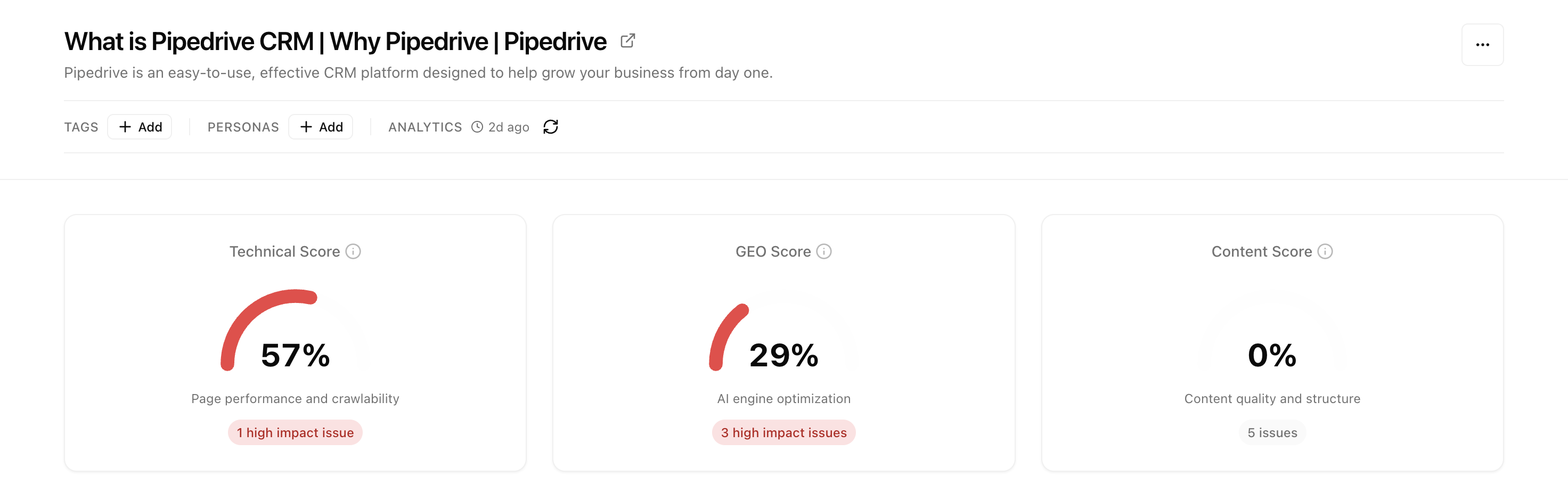
Page information
- Title - The page title as detected from your title tag
- Description - The meta description displayed under the title
- Tags - Click + Add to organize pages with custom tags
- Personas - Click + Add to assign personas for segmented analysis
- Analytics - Shows when data was last collected, with a refresh button to trigger new analysis
Score Cards
Three score cards show your page’s optimization health at a glance.Technical Score
Page performance and crawlability. Measures how well AI can access and parse your content.
GEO Score
AI engine optimization. How well your page is structured for generative AI responses.
Content Score
Content quality and structure. Evaluates depth, clarity, and organization.
- Percentage - Your current score (0-100%)
- Visual indicator - Red/yellow/green arc showing health
- Issue count - Number of problems found, with severity (high impact issues highlighted in red)
Understanding the scores
Metrics
Track how your page performs in AI search engines over time. Use the date range selector to adjust the time period (default: Last 30 days).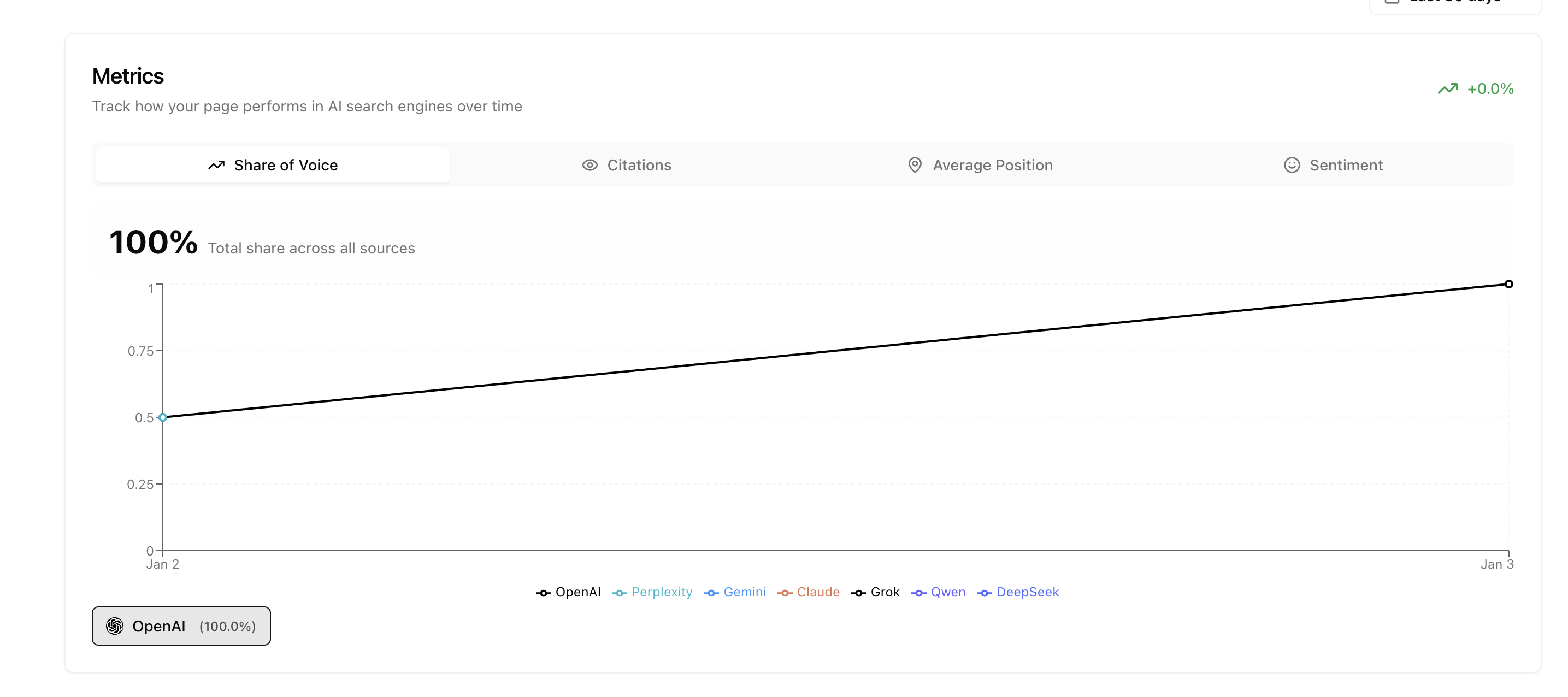
Share of Voice
Your percentage of AI responses
Citations
How often you’re cited as a source
Average Position
Where you rank when mentioned
Sentiment
How AI describes your brand
Content Tab
The Content tab is the most important section for optimization. It shows exactly how AI sees your page and guides you through improvements.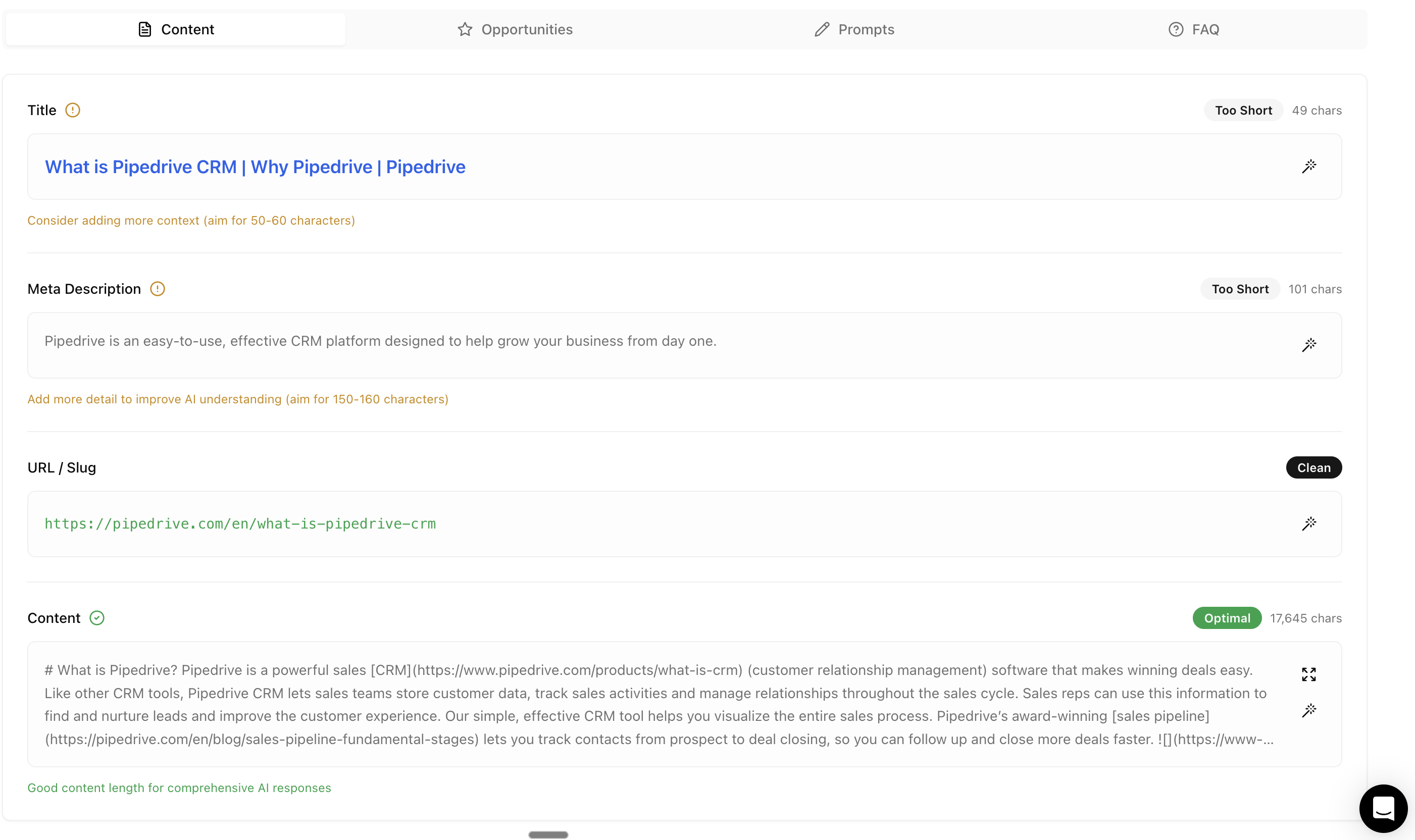
Title
Your page title with real-time optimization feedback. A status indicator shows whether your title is Too Short, Optimal, or Too Long, with character count displayed.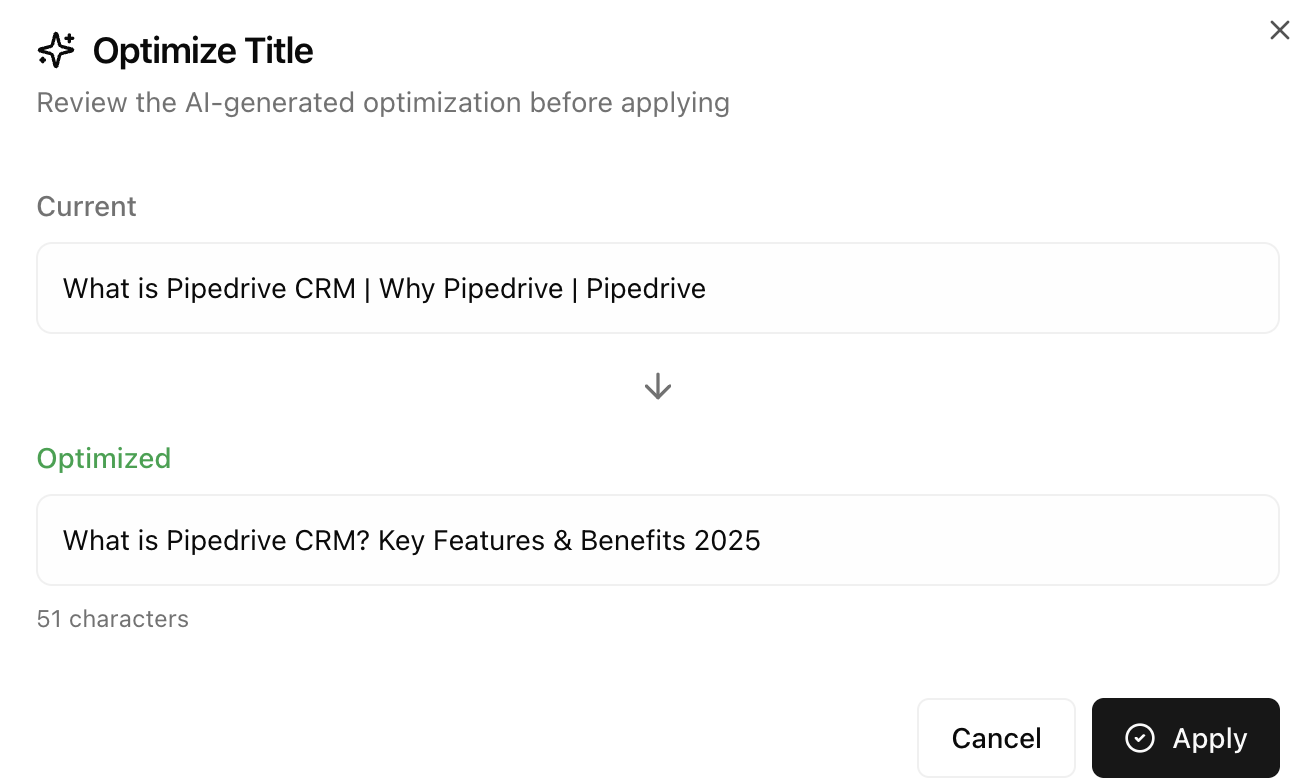
Meta Description
Your meta description with AI-specific guidance. The status indicator helps you hit the sweet spot for AI comprehension (aim for 150-160 characters).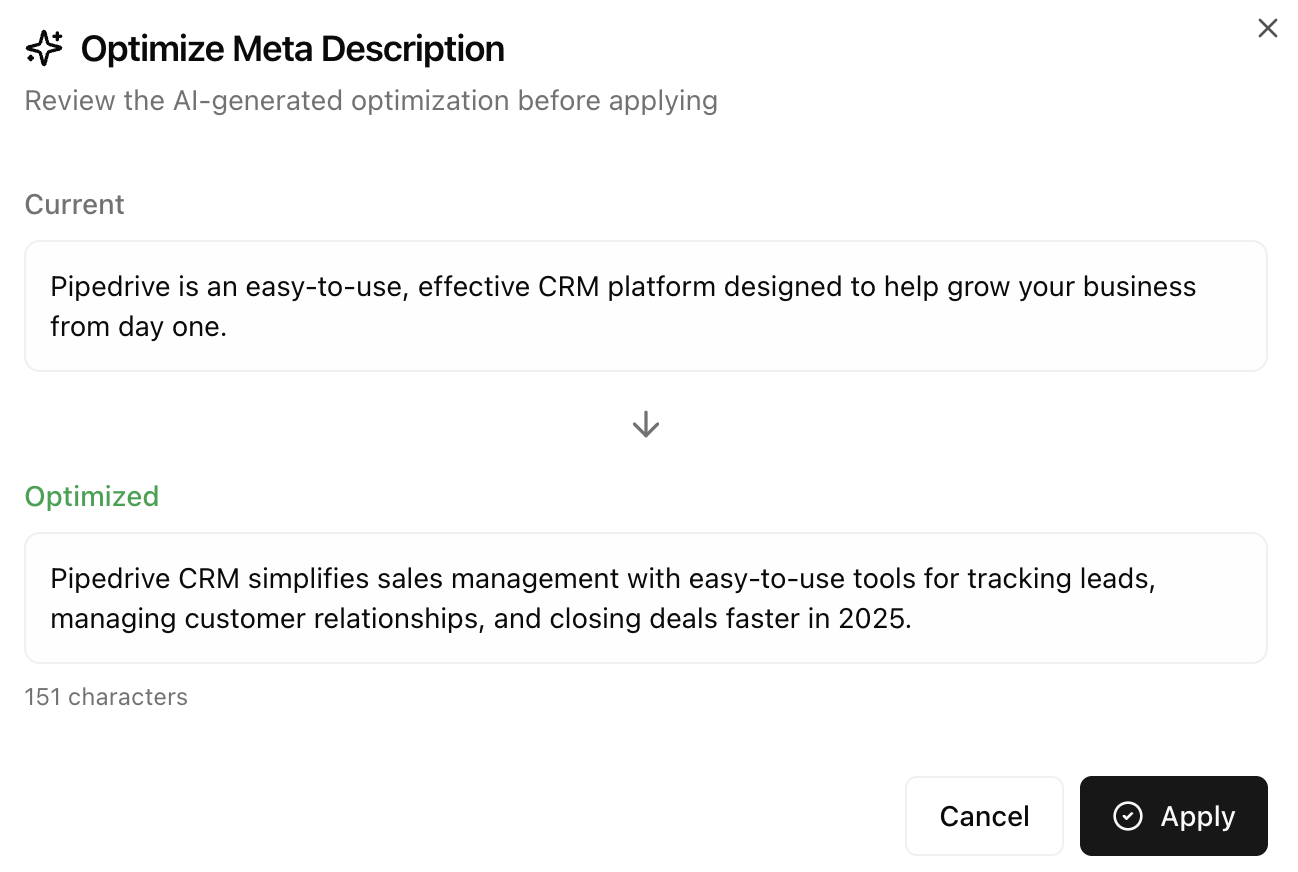
URL / Slug
Shows your page URL with a Clean status indicator when the URL structure is SEO-friendly.Content
The full content AI extracts from your page. A status indicator shows whether your content length is optimal for comprehensive AI responses:- Optimal - Good content length for authoritative answers
- Too Short - May lack depth for AI to cite
- Too Long - May dilute key messages
Opportunities Tab
The Opportunities tab helps you maximize your page’s reach across all relevant prompts.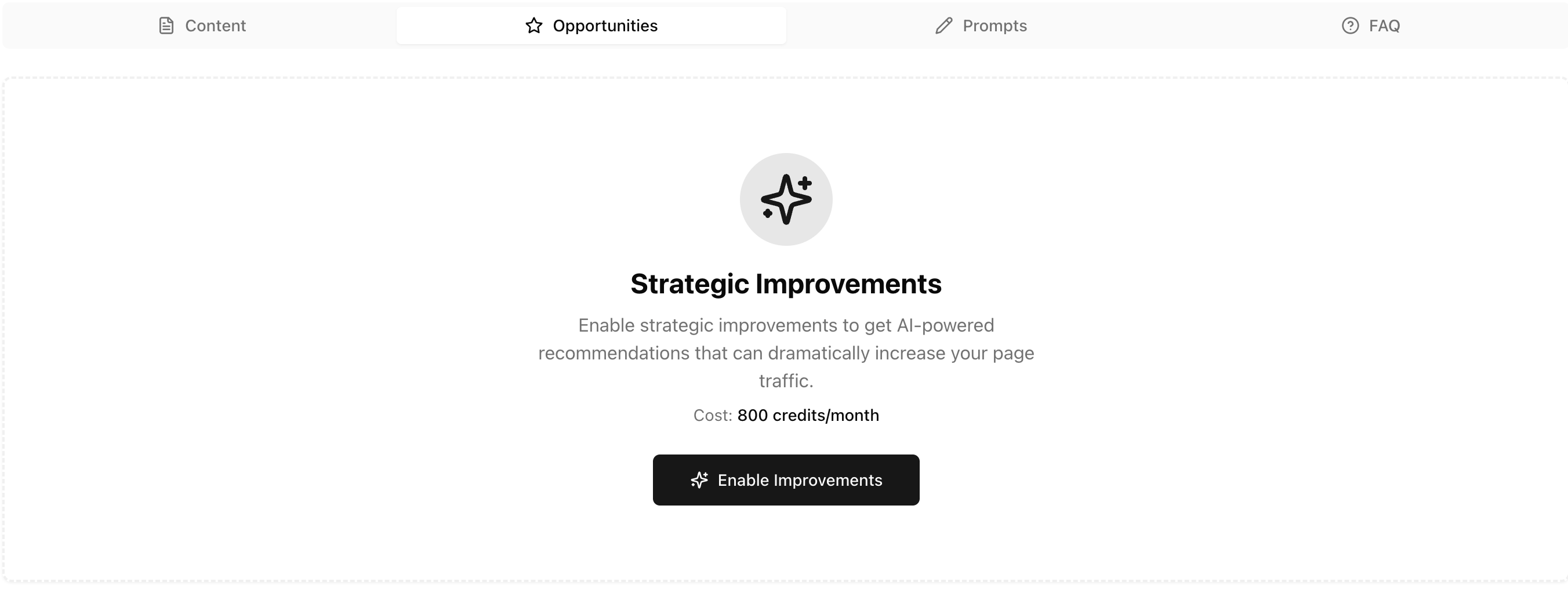
Strategic Improvements
Enable AI-powered recommendations to identify content gaps and expand your visibility. The goal: make your page the default answer for every relevant prompt. Example: If your page covers “CRM for healthcare professionals”, strategic improvements will help ensure you appear for:- “best CRM for medical practices”
- “healthcare CRM software comparison”
- “patient management systems for clinics”
- Any other prompt where your content is relevant
- Which related prompts you’re missing
- What content gaps prevent you from ranking
- How to adjust your content to capture more traffic
Prompts Tab
Shows which prompts cite this page as a source. Click any prompt to see the full prompt results.FAQ Tab
FAQs help AI engines provide direct answers from your content.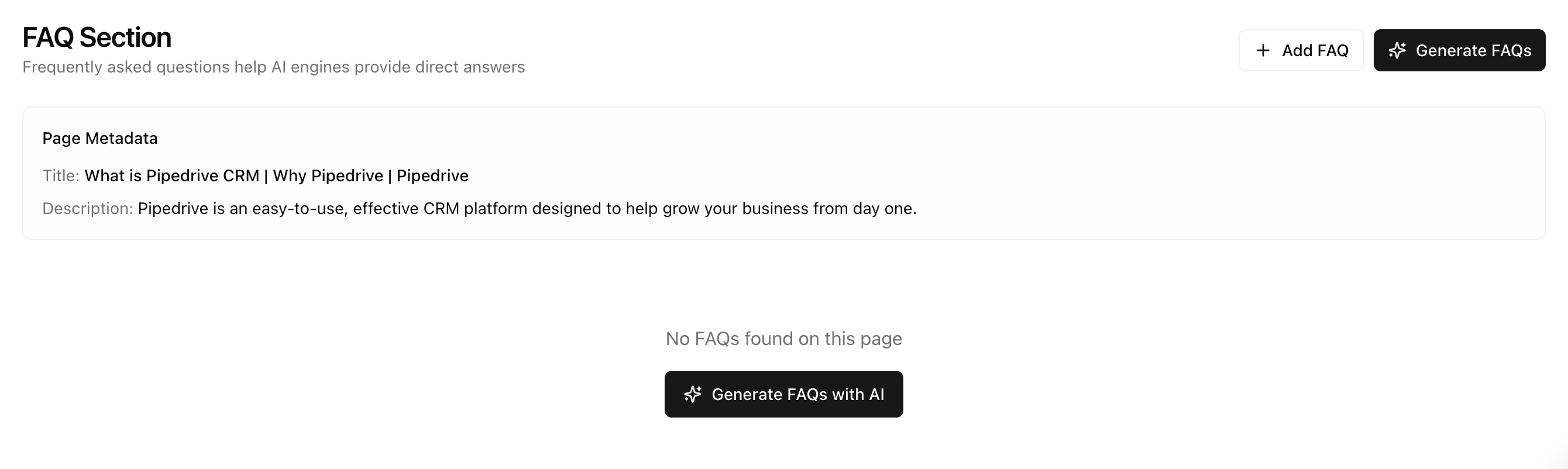
Page Metadata
Shows your page title and description for context when generating FAQs.FAQ Management
Why FAQs matter
AI models work by asking questions and finding answers. When your page directly answers common questions:- AI is more likely to cite you
- Your content appears more authoritative
- You match the exact format AI prefers
Generate FAQs with AI
Click Generate FAQs with AI to automatically create questions your page should answer:- Questions AI commonly asks about your topic
- Questions your content partially answers
- Questions competitors answer that you don’t
Open Studio
Use Studio to add FAQs to your page with proper formatting
Next steps
Winning Pages
Learn strategies to improve this page
Prompt Results
See performance from the prompt perspective