

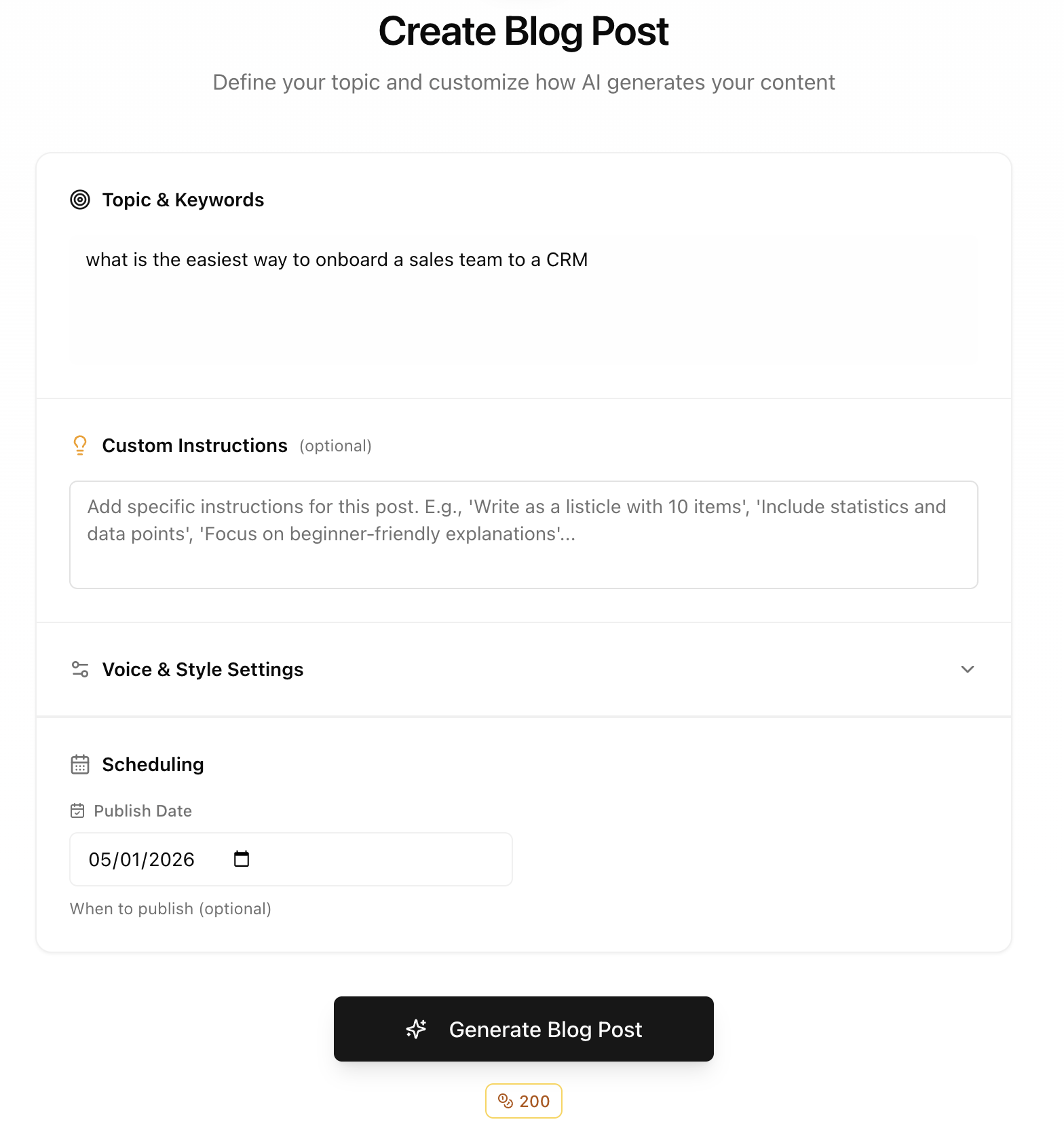
Starting a generation
1
Click Generate
From Studio, click the Generate button to start creating new content.
2
Define your target
Enter the prompt or keyword you want this content to rank for.Examples:
- “best CRM for small sales teams”
- “how to migrate from Salesforce”
- “sales pipeline management tips”
3
Review settings
Confirm or adjust:
- Persona — Who this content is for (defaults to your configured persona)
- Content type — Article, landing page, or LinkedIn post
- Any additional context — Specific points to cover
4
Generate
Click generate. Studio creates your content based on your settings, target prompt, and persona.
Credit costs
Each generation uses credits from your monthly allowance.
Before generating, you’ll see the estimated credit cost. Generation only proceeds when you confirm.
What happens during generation
Studio analyzes:- Your target prompt — What query should this content rank for?
- Your persona — Who is reading this? What do they care about?
- Your settings — Tone, style, verbosity, language
- Competitive content — What’s already ranking for this prompt?
After generation
Once content is generated:- Review the draft — It appears in your Planner
- Edit if needed — Open in the Editor to make changes
- Add your touches — Custom images, videos, internal knowledge
- Export and publish — Copy to your CMS or export as Markdown/HTML
Tips for better results
Be specific with your target prompt
More specific prompts produce more focused content:Use the right persona
If your default persona doesn’t match this content, override it. Content for founders reads differently than content for sales managers.Add context when needed
Use the additional context field for:- Specific features to highlight
- Competitor comparisons to include
- Case studies or examples to reference
Next steps
Edit content
Refine your generated content
View all content
Browse and manage your content