> ## Documentation Index
> Fetch the complete documentation index at: https://docs.attensira.com/llms.txt
> Use this file to discover all available pages before exploring further.
# Planner
> Plan and schedule content in Attensira Studio. Use manual scheduling, AI suggestions, or Auto Plan to fill your calendar with visibility-boosting content for the next 30 days.
The Planner helps you publish content consistently — the key to winning in AI search. Schedule manually, use our suggestions, or let Auto Plan fill your calendar for the next 30 days.
***
## Why planning matters
In AI search, consistent publishing wins. Unlike traditional SEO where domain authority dominates, AI models reward fresh, comprehensive content. If you write world-class content on a topic that others haven't bothered to answer properly, you can outrank established players in days or weeks.
The Planner ensures you're always publishing, always improving your visibility.
***
## Three ways to plan
### 1. Manual scheduling
Add content yourself for prompts you find interesting:
1. Click **Add Content**
2. Enter the prompt or topic you want to target
3. Set a publish date
4. The content appears in your calendar
Use this when you have specific topics in mind or want full control over your content calendar.
### 2. Suggestions
We analyze your monitored prompts and pages, then suggest content that could improve your visibility.
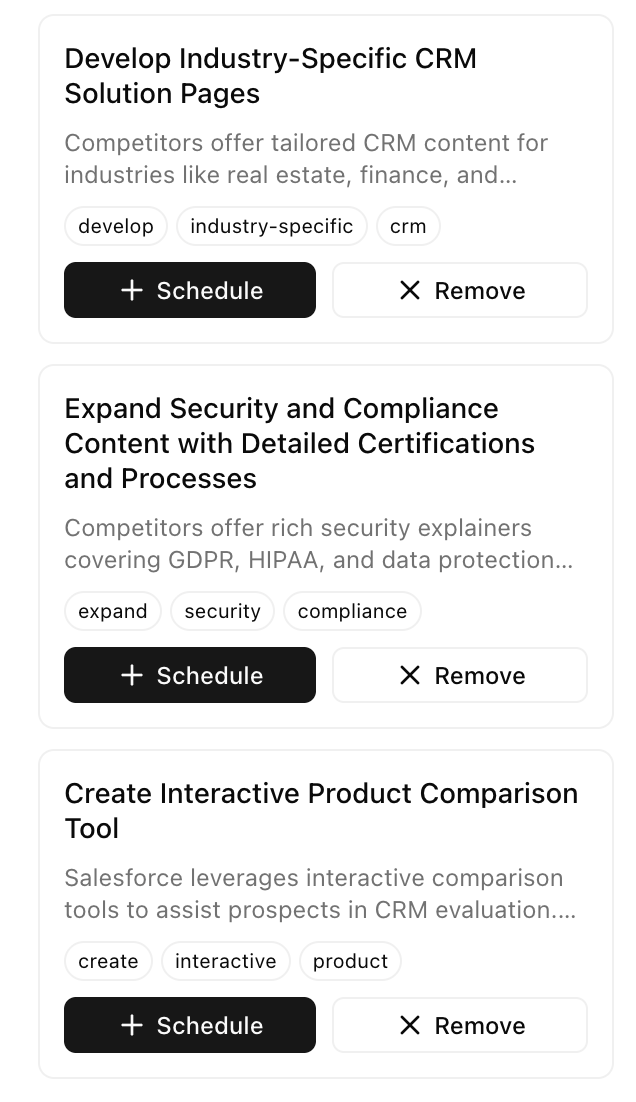 Suggestions are based on:
* **Prompts you're not winning** — Topics where you're being monitored but not showing up
* **Page gaps** — Content that could strengthen your existing pages
* **Competitive opportunities** — Topics where you could outrank competitors
For each suggestion, you can:
* **Approve** — Add it to your calendar
* **Decline** — Remove it from suggestions
### 3. Auto Plan
Click **Auto Plan** to fill your calendar for the next 30 days automatically.
Auto Plan looks at everything — your prompts, your pages, your competitors — and schedules content that will have the biggest impact on your visibility.
***
## How Auto Plan works
Auto Plan optimizes for one metric: **increasing your market share**.
Not just ranking for individual prompts, but making sure:
* You show up for everything you're monitoring
* Your pages appear in more and more AI responses
* You're winning across your entire market
### The process
1. **Analyze your prompts** — Which ones are you monitoring? Which ones are you not showing up for?
2. **Check your pages** — What content do you have? Where are the gaps?
3. **Identify opportunities** — What content would move the needle most?
4. **Generate bottom-of-funnel content** — Content that directly answers what your target audience is searching for
5. **Dig deeper into topics** — Answer specific questions comprehensively, better than anyone else
### Scheduling logic
Auto Plan schedules content for every day:
* If a day already has content scheduled, it moves to the next available day
* It always fills the next 30 days
* Content is spread evenly to maintain consistent publishing
### Continuous planning
With the right settings enabled, Auto Plan can run continuously:
* As days pass, new content gets planned
* Your calendar stays full 30 days ahead
* You review and approve, or let it run automatically
Configure automation preferences in the Studio settings within the app.
***
## Why this works for AI search
Traditional SEO rewards domain authority. A new site can take years to compete with established players.
AI search is different. Models prioritize:
* **Comprehensive answers** — Content that fully addresses the query
* **Fresh information** — Recently published, up-to-date content
* **Specific expertise** — Deep dives into narrow topics
This means a well-written article on a specific topic can outrank industry giants — sometimes within days of publishing. The Planner helps you systematically create that content.
***
## Viewing your content
Switch between two views to manage your content:
### Calendar view
See your content schedule visually:
Suggestions are based on:
* **Prompts you're not winning** — Topics where you're being monitored but not showing up
* **Page gaps** — Content that could strengthen your existing pages
* **Competitive opportunities** — Topics where you could outrank competitors
For each suggestion, you can:
* **Approve** — Add it to your calendar
* **Decline** — Remove it from suggestions
### 3. Auto Plan
Click **Auto Plan** to fill your calendar for the next 30 days automatically.
Auto Plan looks at everything — your prompts, your pages, your competitors — and schedules content that will have the biggest impact on your visibility.
***
## How Auto Plan works
Auto Plan optimizes for one metric: **increasing your market share**.
Not just ranking for individual prompts, but making sure:
* You show up for everything you're monitoring
* Your pages appear in more and more AI responses
* You're winning across your entire market
### The process
1. **Analyze your prompts** — Which ones are you monitoring? Which ones are you not showing up for?
2. **Check your pages** — What content do you have? Where are the gaps?
3. **Identify opportunities** — What content would move the needle most?
4. **Generate bottom-of-funnel content** — Content that directly answers what your target audience is searching for
5. **Dig deeper into topics** — Answer specific questions comprehensively, better than anyone else
### Scheduling logic
Auto Plan schedules content for every day:
* If a day already has content scheduled, it moves to the next available day
* It always fills the next 30 days
* Content is spread evenly to maintain consistent publishing
### Continuous planning
With the right settings enabled, Auto Plan can run continuously:
* As days pass, new content gets planned
* Your calendar stays full 30 days ahead
* You review and approve, or let it run automatically
Configure automation preferences in the Studio settings within the app.
***
## Why this works for AI search
Traditional SEO rewards domain authority. A new site can take years to compete with established players.
AI search is different. Models prioritize:
* **Comprehensive answers** — Content that fully addresses the query
* **Fresh information** — Recently published, up-to-date content
* **Specific expertise** — Deep dives into narrow topics
This means a well-written article on a specific topic can outrank industry giants — sometimes within days of publishing. The Planner helps you systematically create that content.
***
## Viewing your content
Switch between two views to manage your content:
### Calendar view
See your content schedule visually:
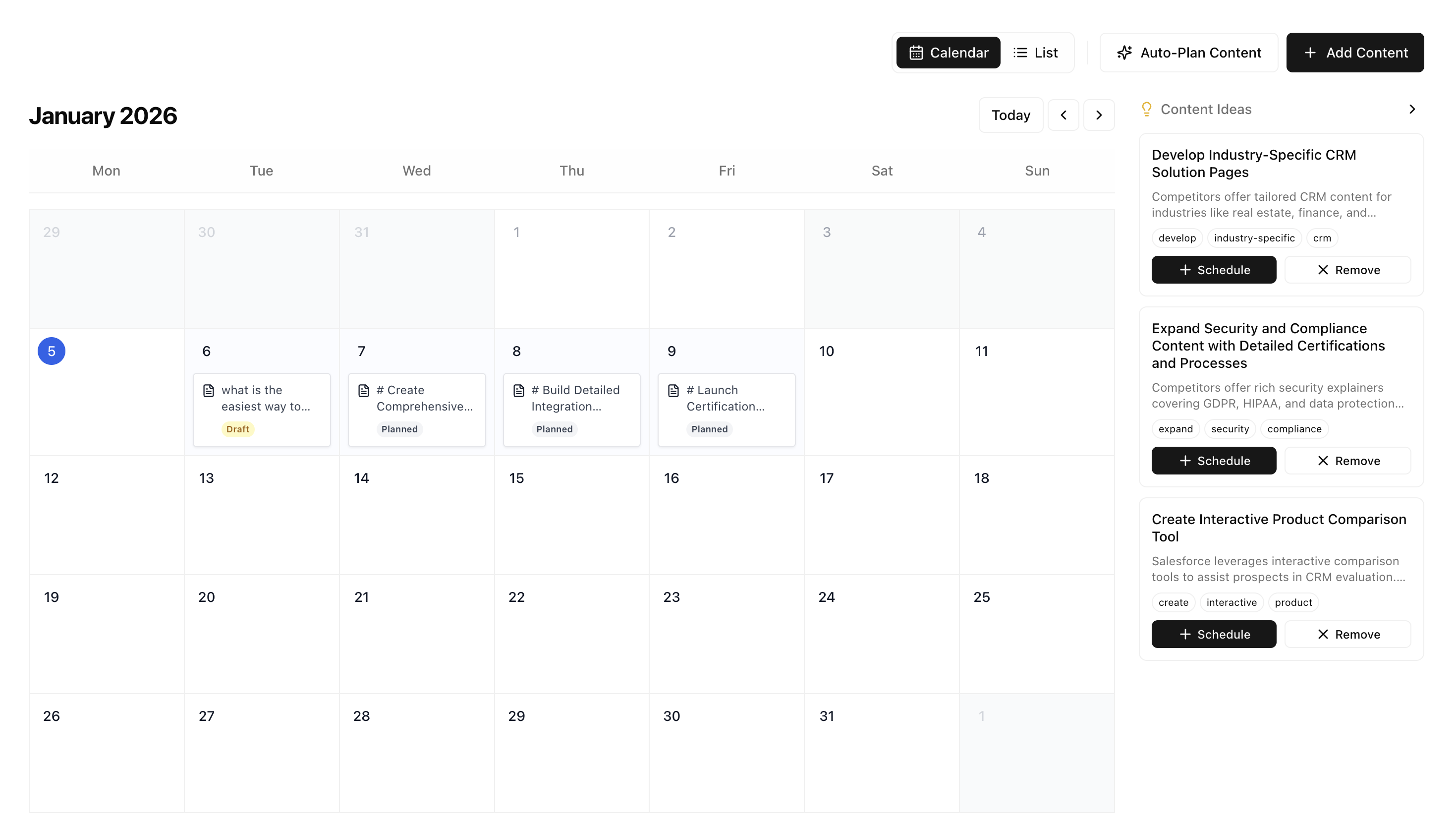 The calendar shows:
* **Scheduled content** — What's planned for each day
* **Generated content** — Ready for review
* **Published content** — Already live
* **Gaps** — Days without content (Auto Plan fills these)
### List view
Search and browse all your content in one place:
The calendar shows:
* **Scheduled content** — What's planned for each day
* **Generated content** — Ready for review
* **Published content** — Already live
* **Gaps** — Days without content (Auto Plan fills these)
### List view
Search and browse all your content in one place:
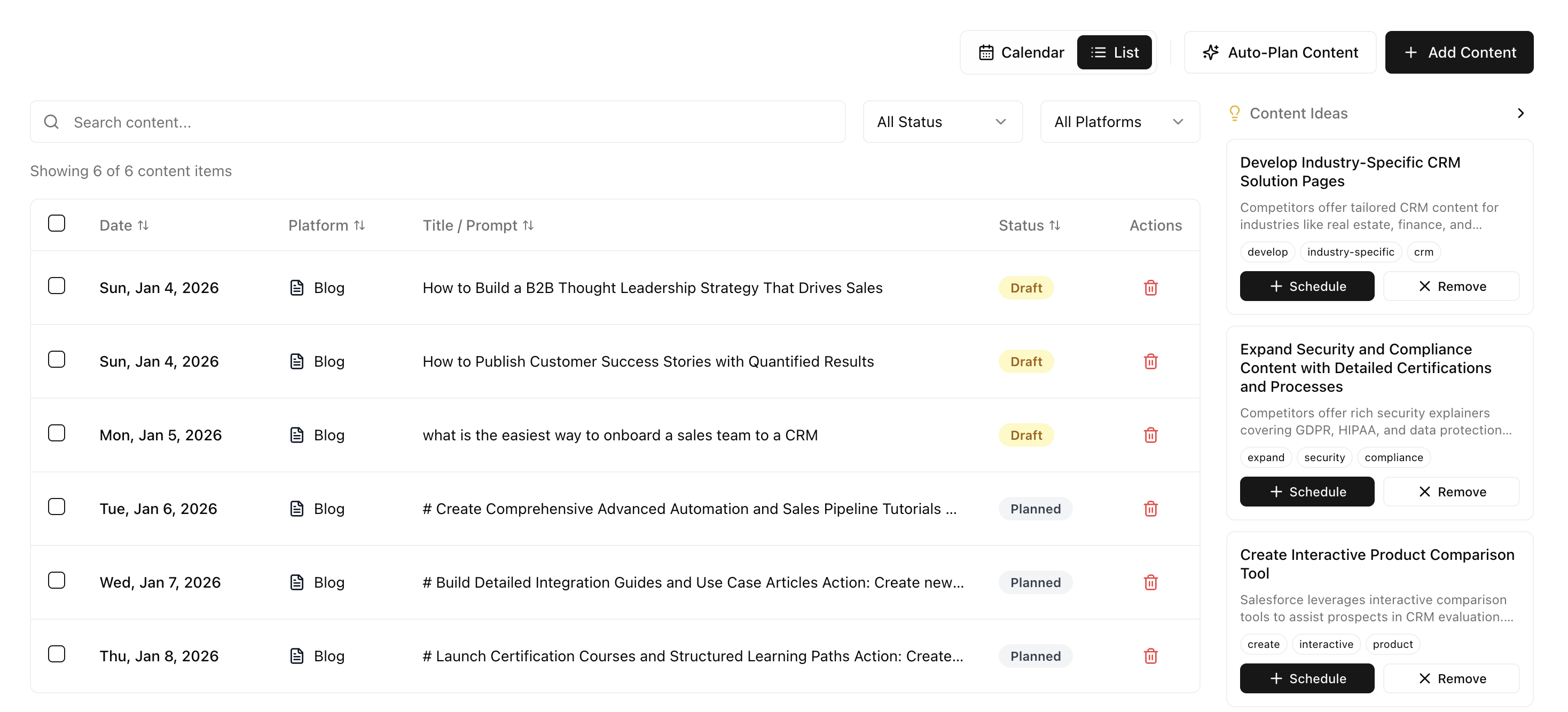 Use List view to:
* **Search** — Find content by title, topic, or prompt
* **Filter** — Show only planned, generated, or published content
* **Quick access** — Jump to content you published months ago
* **Edit or delete** — Make changes to any content
***
## Content status
| Status | Meaning |
| ------------- | ------------------------------- |
| **Planned** | Scheduled but not yet generated |
| **Generated** | Draft created, ready for review |
| **Ready** | Reviewed and approved |
| **Published** | Live on your site |
***
## Next steps
Refine your generated content
Create your first article
Use List view to:
* **Search** — Find content by title, topic, or prompt
* **Filter** — Show only planned, generated, or published content
* **Quick access** — Jump to content you published months ago
* **Edit or delete** — Make changes to any content
***
## Content status
| Status | Meaning |
| ------------- | ------------------------------- |
| **Planned** | Scheduled but not yet generated |
| **Generated** | Draft created, ready for review |
| **Ready** | Reviewed and approved |
| **Published** | Live on your site |
***
## Next steps
Refine your generated content
Create your first article