> ## Documentation Index
> Fetch the complete documentation index at: https://docs.attensira.com/llms.txt
> Use this file to discover all available pages before exploring further.
# Generate Content
> Generate AI-optimized articles, blog posts, and LinkedIn content in Attensira Studio. Define your target prompt, customize settings, and get a complete draft ready for editing.
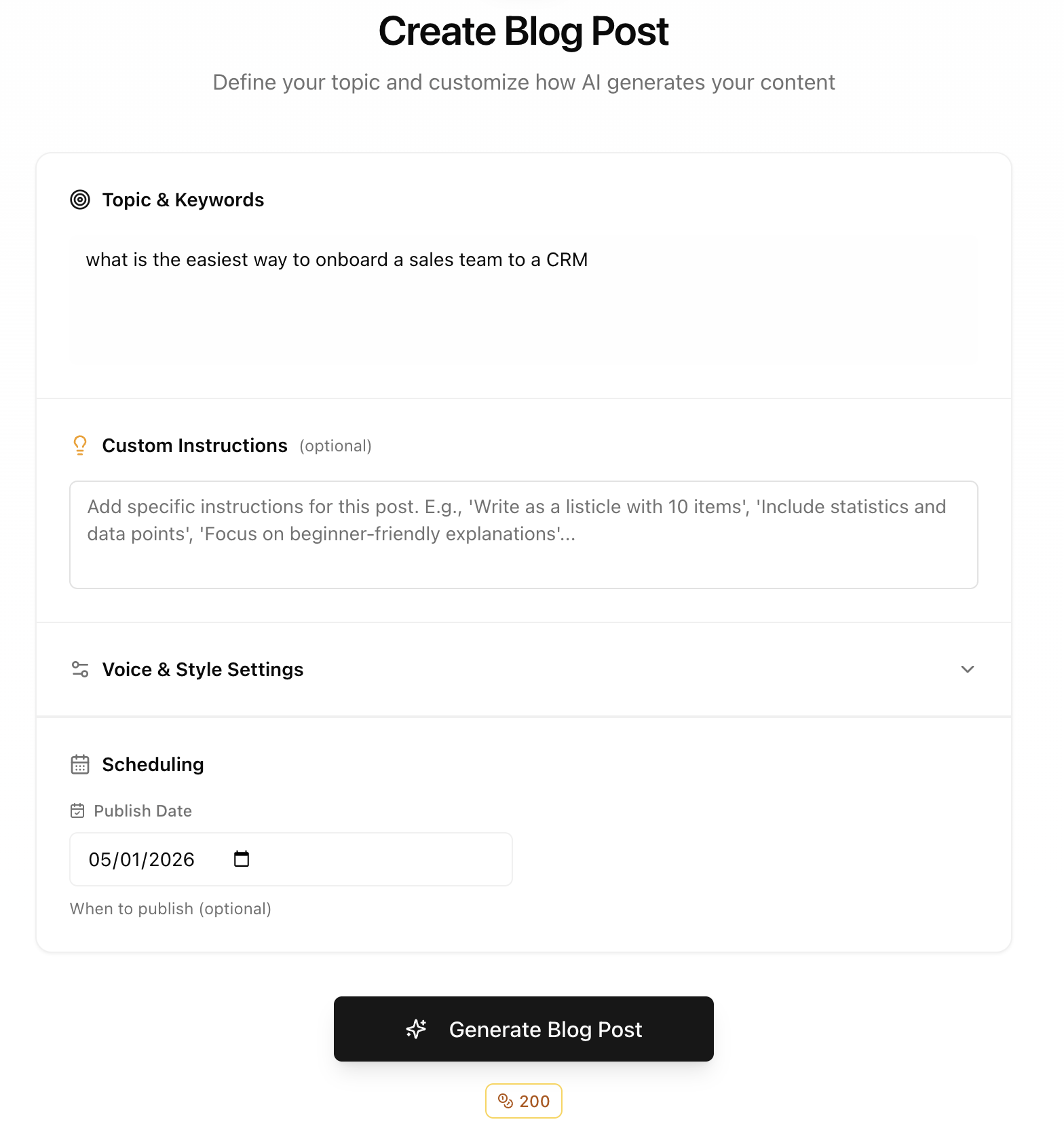
Generate creates new content from scratch. Define your target prompt, review the generation settings, and Studio produces a complete draft ready for editing.
 ***
## Starting a generation
From Studio, click the **Generate** button to start creating new content.
Enter the prompt or keyword you want this content to rank for.
**Examples:**
* "best CRM for small sales teams"
* "how to migrate from Salesforce"
* "sales pipeline management tips"
Confirm or adjust:
* **Persona** — Who this content is for (defaults to your configured persona)
* **Content type** — Article, landing page, or LinkedIn post
* **Any additional context** — Specific points to cover
Click generate. Studio creates your content based on your settings, target prompt, and persona.
***
## Credit costs
Each generation uses credits from your monthly allowance.
| Content type | Credits |
| ----------------------- | -------------- |
| **Article / blog post** | 200 credits |
| **LinkedIn post** | 50-100 credits |
Before generating, you'll see the estimated credit cost. Generation only proceeds when you confirm.
***
## What happens during generation
Studio analyzes:
1. **Your target prompt** — What query should this content rank for?
2. **Your persona** — Who is reading this? What do they care about?
3. **Your settings** — Tone, style, verbosity, language
4. **Competitive content** — What's already ranking for this prompt?
The result is a complete draft optimized for your target prompt and audience.
***
## After generation
Once content is generated:
1. **Review the draft** — It appears in your [Planner](/studio/planner)
2. **Edit if needed** — Open in the [Editor](/studio/editor) to make changes
3. **Add your touches** — Custom images, videos, internal knowledge
4. **Export and publish** — Copy to your CMS or export as Markdown/HTML
***
## Tips for better results
### Be specific with your target prompt
More specific prompts produce more focused content:
| Less specific | More specific |
| -------------- | ---------------------------------------------- |
| "CRM software" | "best CRM for B2B sales teams under 50 people" |
| "sales tips" | "how to shorten B2B sales cycles" |
### Use the right persona
If your default persona doesn't match this content, override it. Content for founders reads differently than content for sales managers.
### Add context when needed
Use the additional context field for:
* Specific features to highlight
* Competitor comparisons to include
* Case studies or examples to reference
***
## Next steps
Refine your generated content
Browse and manage your content
***
## Starting a generation
From Studio, click the **Generate** button to start creating new content.
Enter the prompt or keyword you want this content to rank for.
**Examples:**
* "best CRM for small sales teams"
* "how to migrate from Salesforce"
* "sales pipeline management tips"
Confirm or adjust:
* **Persona** — Who this content is for (defaults to your configured persona)
* **Content type** — Article, landing page, or LinkedIn post
* **Any additional context** — Specific points to cover
Click generate. Studio creates your content based on your settings, target prompt, and persona.
***
## Credit costs
Each generation uses credits from your monthly allowance.
| Content type | Credits |
| ----------------------- | -------------- |
| **Article / blog post** | 200 credits |
| **LinkedIn post** | 50-100 credits |
Before generating, you'll see the estimated credit cost. Generation only proceeds when you confirm.
***
## What happens during generation
Studio analyzes:
1. **Your target prompt** — What query should this content rank for?
2. **Your persona** — Who is reading this? What do they care about?
3. **Your settings** — Tone, style, verbosity, language
4. **Competitive content** — What's already ranking for this prompt?
The result is a complete draft optimized for your target prompt and audience.
***
## After generation
Once content is generated:
1. **Review the draft** — It appears in your [Planner](/studio/planner)
2. **Edit if needed** — Open in the [Editor](/studio/editor) to make changes
3. **Add your touches** — Custom images, videos, internal knowledge
4. **Export and publish** — Copy to your CMS or export as Markdown/HTML
***
## Tips for better results
### Be specific with your target prompt
More specific prompts produce more focused content:
| Less specific | More specific |
| -------------- | ---------------------------------------------- |
| "CRM software" | "best CRM for B2B sales teams under 50 people" |
| "sales tips" | "how to shorten B2B sales cycles" |
### Use the right persona
If your default persona doesn't match this content, override it. Content for founders reads differently than content for sales managers.
### Add context when needed
Use the additional context field for:
* Specific features to highlight
* Competitor comparisons to include
* Case studies or examples to reference
***
## Next steps
Refine your generated content
Browse and manage your content