> ## Documentation Index
> Fetch the complete documentation index at: https://docs.attensira.com/llms.txt
> Use this file to discover all available pages before exploring further.
# Editor
> Refine AI-generated content in Attensira Studio's editor. Add custom images, embed videos, use AI assistance to improve sections, and export in multiple formats.
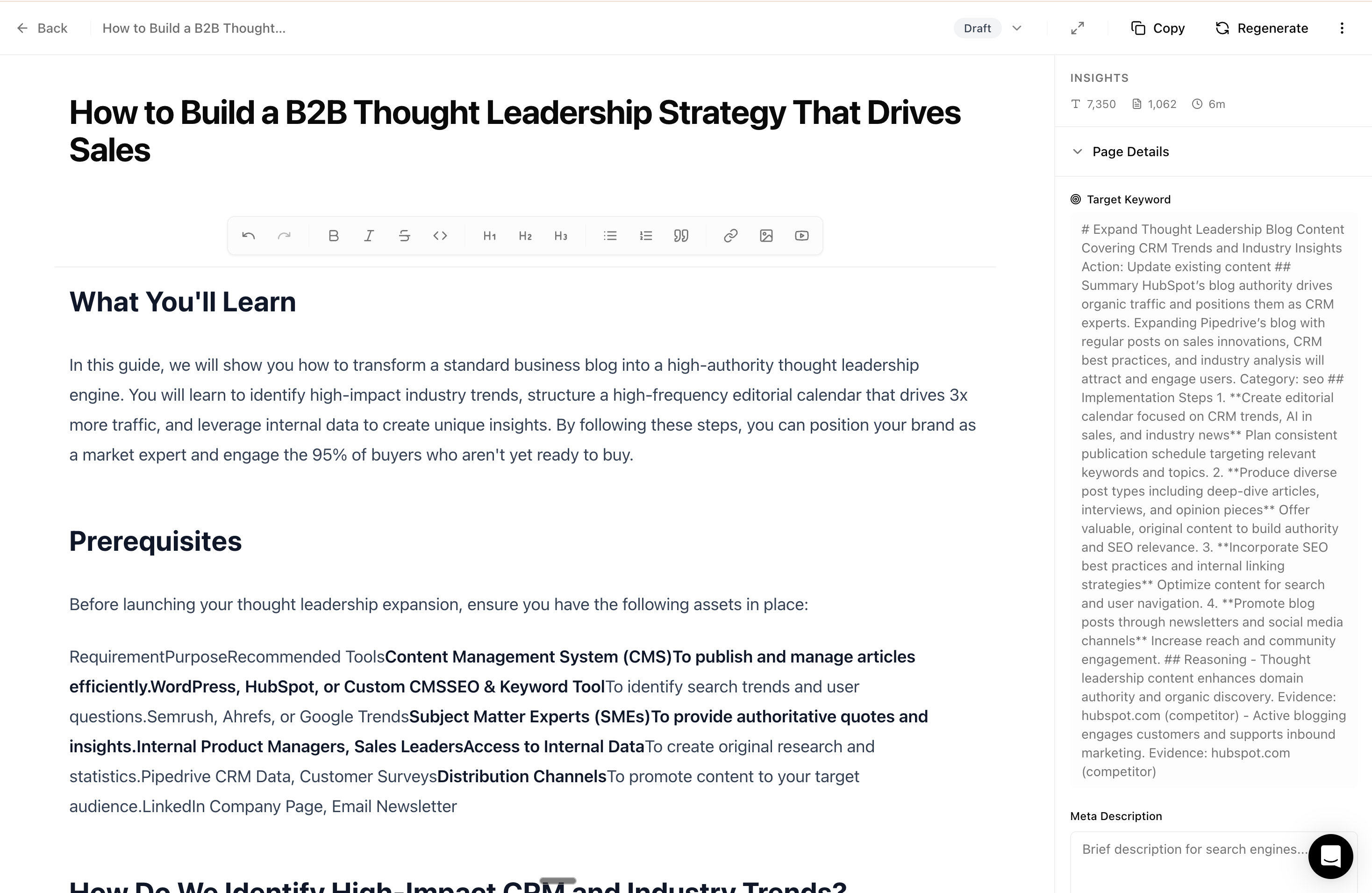
The Editor is where you refine content after generation. Add your own images, embed videos, fine-tune the copy, and get content ready to publish.
 ***
## Opening content in the Editor
Open any content from the [Planner](/studio/planner):
1. Go to Planner and switch to **List view**
2. Find the content you want to edit
3. Click **Edit**
The content opens in the Editor where you can make changes.
***
## Adding your own content
Studio generates the foundation. You add the finishing touches.
### Custom images
Add your own visuals:
* **Product screenshots** — Show your actual product
* **Custom graphics** — Branded illustrations or diagrams
* **Photos** — Team photos, office shots, real examples
* **Infographics** — Visual data or process flows
AI-generated content performs best when combined with authentic visuals. Real product screenshots and team photos build trust.
### Videos
Embed videos to enhance your content:
* **Product demos** — Show features in action
* **Tutorials** — Walk through processes step-by-step
* **Testimonials** — Customer stories and reviews
* **Explainers** — Concept breakdowns
### Internal knowledge
Add information only you know:
* **Specific pricing or offers**
* **Customer quotes or case studies**
* **Technical specifications**
* **Company-specific processes**
***
## Editor features
Headers, lists, bold, italic, links, and more
Drag and drop images directly into your content
Embed YouTube, Vimeo, or Loom videos
Never lose your work — content saves automatically
***
## AI assistance
The Editor can help you refine content:
| Feature | What it does |
| ------------------- | ------------------------------------------------ |
| **Expand section** | Add more depth to thin paragraphs |
| **Shorten section** | Make verbose content more concise |
| **Improve clarity** | Rewrite confusing passages |
| **Add examples** | Generate concrete examples for abstract concepts |
| **Change tone** | Adjust to be more formal or casual |
***
## Optimization score
As you edit, the Editor shows how well your content is optimized:
***
## Opening content in the Editor
Open any content from the [Planner](/studio/planner):
1. Go to Planner and switch to **List view**
2. Find the content you want to edit
3. Click **Edit**
The content opens in the Editor where you can make changes.
***
## Adding your own content
Studio generates the foundation. You add the finishing touches.
### Custom images
Add your own visuals:
* **Product screenshots** — Show your actual product
* **Custom graphics** — Branded illustrations or diagrams
* **Photos** — Team photos, office shots, real examples
* **Infographics** — Visual data or process flows
AI-generated content performs best when combined with authentic visuals. Real product screenshots and team photos build trust.
### Videos
Embed videos to enhance your content:
* **Product demos** — Show features in action
* **Tutorials** — Walk through processes step-by-step
* **Testimonials** — Customer stories and reviews
* **Explainers** — Concept breakdowns
### Internal knowledge
Add information only you know:
* **Specific pricing or offers**
* **Customer quotes or case studies**
* **Technical specifications**
* **Company-specific processes**
***
## Editor features
Headers, lists, bold, italic, links, and more
Drag and drop images directly into your content
Embed YouTube, Vimeo, or Loom videos
Never lose your work — content saves automatically
***
## AI assistance
The Editor can help you refine content:
| Feature | What it does |
| ------------------- | ------------------------------------------------ |
| **Expand section** | Add more depth to thin paragraphs |
| **Shorten section** | Make verbose content more concise |
| **Improve clarity** | Rewrite confusing passages |
| **Add examples** | Generate concrete examples for abstract concepts |
| **Change tone** | Adjust to be more formal or casual |
***
## Optimization score
As you edit, the Editor shows how well your content is optimized:
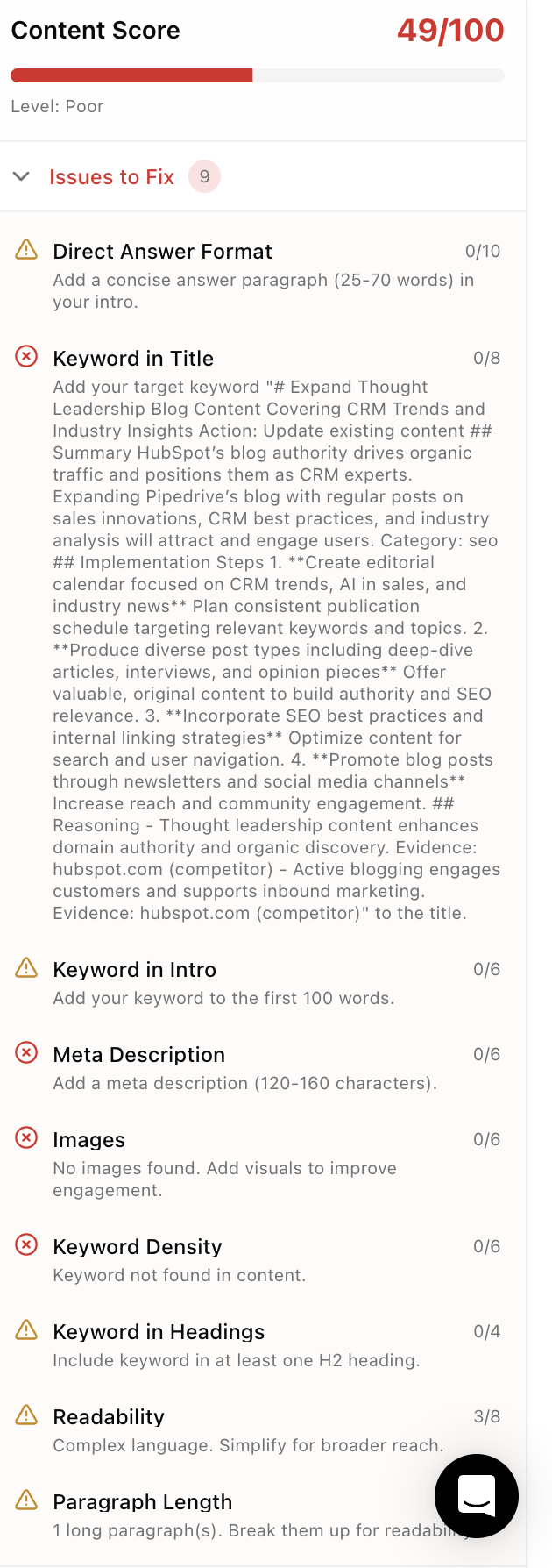 The score is based on:
| Factor | What it measures |
| --------------------- | --------------------------------------------- |
| **Prompt relevance** | How well content matches target prompts |
| **Comprehensiveness** | Coverage of the topic compared to competitors |
| **Structure** | Clear headings, formatting, and organization |
| **Readability** | Easy to understand language and flow |
The Editor provides specific suggestions to improve your score.
***
## Exporting content
When your content is ready:
### Export formats
| Format | Best for |
| --------------------- | ------------------------------ |
| **Markdown** | Most CMS platforms, developers |
| **HTML** | Direct web publishing |
| **Plain text** | Simple copy-paste |
| **Copy to clipboard** | Quick paste to any editor |
### Publishing workflow
1. Finish editing in Studio
2. Export in your preferred format
3. Paste into your CMS (WordPress, Notion, etc.)
4. Add any CMS-specific elements (categories, featured images)
5. Publish
6. Mark as "Published" in your Studio Library
***
## Tips
### Let Studio handle the heavy lifting
Don't rewrite everything. Studio creates content based on your settings and target prompts. If you're making major changes, consider adjusting your default settings instead.
### Focus on what makes you unique
Add:
* Your specific examples and case studies
* Internal knowledge competitors don't have
* Real product screenshots and demos
* Customer quotes and testimonials
***
## Next steps
Create new articles
Browse and manage your content
The score is based on:
| Factor | What it measures |
| --------------------- | --------------------------------------------- |
| **Prompt relevance** | How well content matches target prompts |
| **Comprehensiveness** | Coverage of the topic compared to competitors |
| **Structure** | Clear headings, formatting, and organization |
| **Readability** | Easy to understand language and flow |
The Editor provides specific suggestions to improve your score.
***
## Exporting content
When your content is ready:
### Export formats
| Format | Best for |
| --------------------- | ------------------------------ |
| **Markdown** | Most CMS platforms, developers |
| **HTML** | Direct web publishing |
| **Plain text** | Simple copy-paste |
| **Copy to clipboard** | Quick paste to any editor |
### Publishing workflow
1. Finish editing in Studio
2. Export in your preferred format
3. Paste into your CMS (WordPress, Notion, etc.)
4. Add any CMS-specific elements (categories, featured images)
5. Publish
6. Mark as "Published" in your Studio Library
***
## Tips
### Let Studio handle the heavy lifting
Don't rewrite everything. Studio creates content based on your settings and target prompts. If you're making major changes, consider adjusting your default settings instead.
### Focus on what makes you unique
Add:
* Your specific examples and case studies
* Internal knowledge competitors don't have
* Real product screenshots and demos
* Customer quotes and testimonials
***
## Next steps
Create new articles
Browse and manage your content